Getting Started on Modern Dropship
Passwordless Sign-in
Step by Step for Buyer Onboarding
Step by Step for Seller Onboarding
Successful Support Interactions
System Status
Integrations
Shopify
Connecting Shopify
Shopify Location Filter for Inventory
Shopify Product Syncing
Updating Shopify Store URL
WooCommerce
Adding Barcode Values in WooCommerce
Connecting WooCommerce
How can I confirm that Modern Dropship can pull my Products from my WooCommerce Store?
Updating your WooCommerce URL
Magento 2
BigCommerce
CSV managed account
Connecting through SFTP
Downloadable Image Links
Fixing SKUs in Scientific Notation
How to Resolve " Your SFTP user requires delete permission on your SFTP server."
How to Resolve "Unable to access your SFTP server"
How to Resolve "Your SFTP user requires read permission on your SFTP server"
How to Resolve "Your SFTP user requires write permission on your SFTP server."
Importing Products using a CSV file in the Modern Dropship web app
Manual Fulfillment
API
Building API Integrations
Getting Started with Webhooks
Getting Started with the Buyer API
How to Create an Order for the Buyer API
Webhook FAQ
EDI
Connecting through Seller EDI - Invoice (810) Specification
Connecting through Seller EDI for Dropship
Connecting through Seller EDI for Dropship - Advance Ship Notice (856) Specification
Connecting through Seller EDI for Dropship - Inventory Update (846) Specification
Connecting through Seller EDI for Dropship - Purchase Order (850) Specification
Connecting through Seller EDI for Dropship - Purchase Order Acknowledgements (855) Specification
Downloading EDI Files
How to Create a Test Order as an EDI Seller
How to Resend an Advance Ship Notice
How to Resolve "Already Processed Files"
Seller EDI Quick Reference
EDI - Fall 2024 and later
Advance Ship Notice (856) Specification
Connecting through Seller EDI
Inventory Update (846) Specification
Invoice (810) Specification
Purchase Order (850) Specification
Purchase Order Acknowledgements (855) Specification
Seller EDI Quick Reference: Fall 2024 and later
Migrating Ecommerce Platforms
Supported Connection Methods
Account Management
Connecting Easypost
How to Change Your Commerce Type
Inviting Team Members
Managing Issues
Managing Multiple Accounts
Managing Notifications
Reporting
Setting Billing Address
Viewing Subscription Info
Partners
Actions & Action Templates
Adding Partners
How to Determine the Remaining onboarding steps for a Partner
Seller SLAs
Products
Autonomous Merchandising
Buyer Product Validation Guide
Exclusive Collaborations - Syncing Unpublished Products
How Inventory Sync Works
How to Solve Shopify "Item Not Recognized" Error
Marking Products as Active or Inactive
Selecting Products
Pricing
Create a Price List For a Smaller Catalog
Editing Price Lists
How to Set Up Pricing
Price List FAQs
Promotional Price Lists and Discounts
Orders
Cancelling Orders
Check Order Status
Fixing an Order Sync Timeout Error
Fulfilling orders from your ecommerce platform
Handling Returns
Packing Slips - Buyers
Packing Slips - Sellers
Sending Test Orders
Invoicing
Configuring Per-Order Fees
How Invoicing Works
How to Delay an Invoice
Partnership Billing Settings
Understanding Per-Order Fees
Platform
General Dropship Information
- All Categories
- Integrations
- Shopify
- Shopify Location Filter for Inventory
Shopify Location Filter for Inventory

Often times a supplier may have multiple locations that fulfill Online Store locations but they are region specific and not all of the inventory assigned to those locations is intended to fulfill Online Store / Dropship orders. To give suppliers more control over the inventory count they are showing to their partners we have released the ability to filter which location(s) Modern Dropship syncs inventory from.
Considerations
When setting up the location filter there are a couple of important considerations when it comes to your Location Settings in Shopify:
1) Only filter to locations that are set to 'Fulfill Online Store orders'
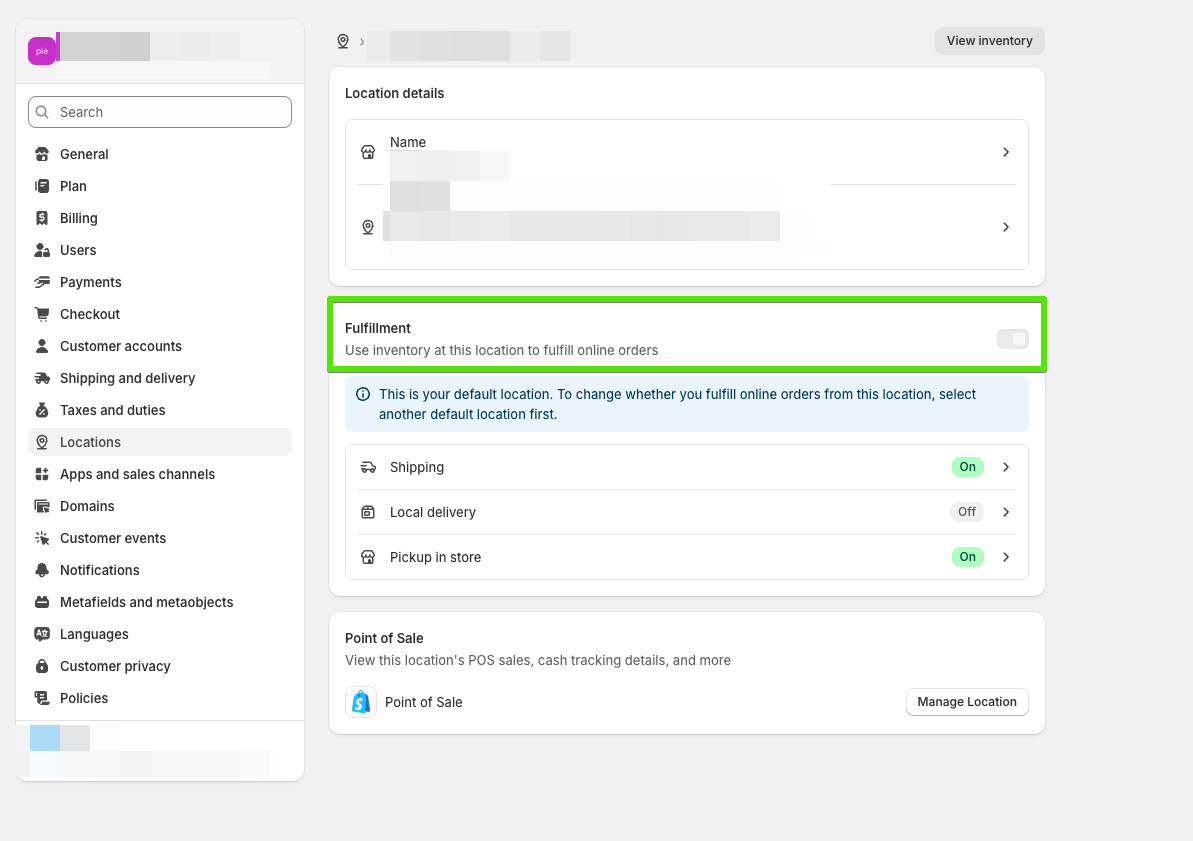
If you filter to a location that does not fulfill Online Store orders, all orders will error when attempting to sync to your platform
2) Ensure the products you have assigned to that location have eligible shipping rates to the region your partner is selling to. If there is no shipping rate available for the product based on the customer shipping address we will see an error in Modern Dropship when attempting sync the order.
Location Filter Setup
As long as the location you are filtering to adheres to the considerations above you can setup the filter in the Integrations Settings in Modern Dropship.
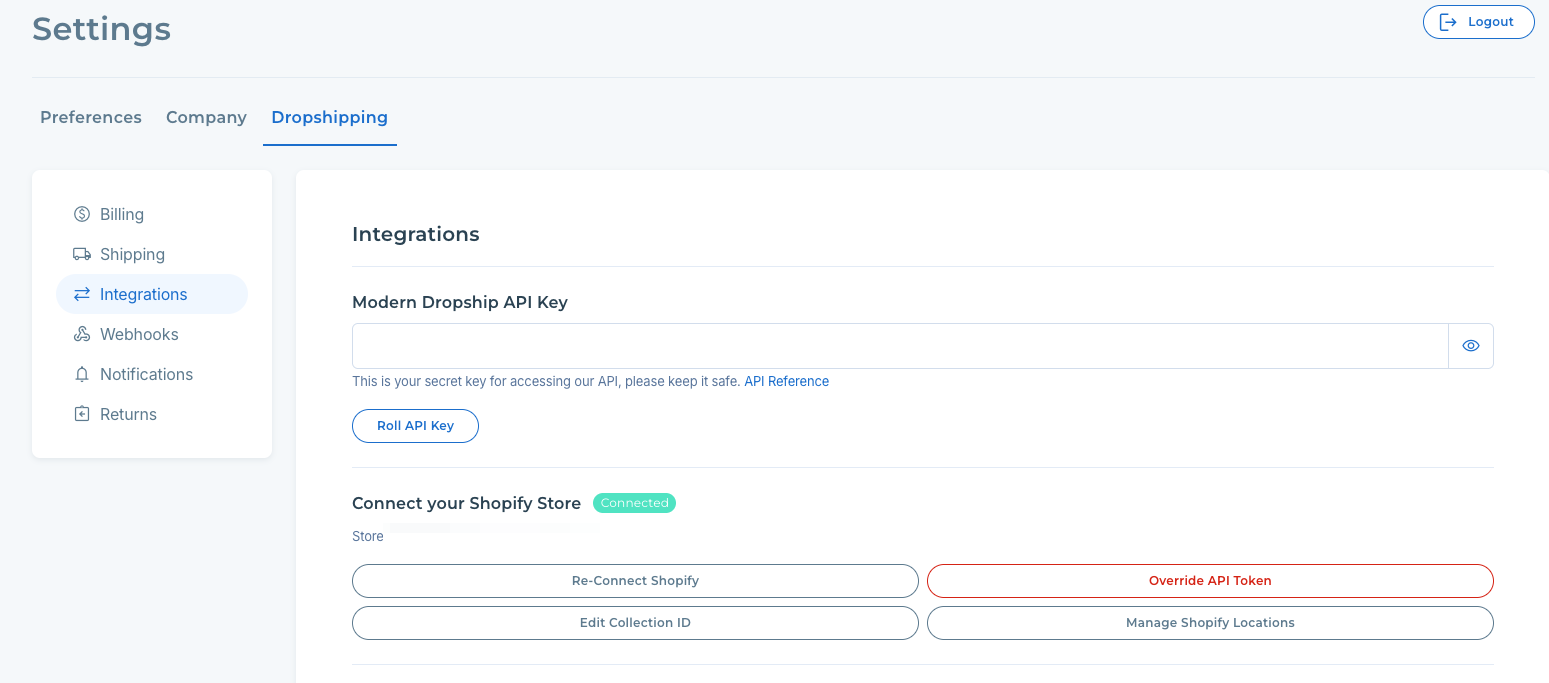
1) The first step is to update your app permissions by hitting the 'Connect Shopify' button showing in the screenshot below. Once the app permissions are updated you can proceed with selecting the location(s)
2) Select the locations you'd like to receive inventory from in the filter list:
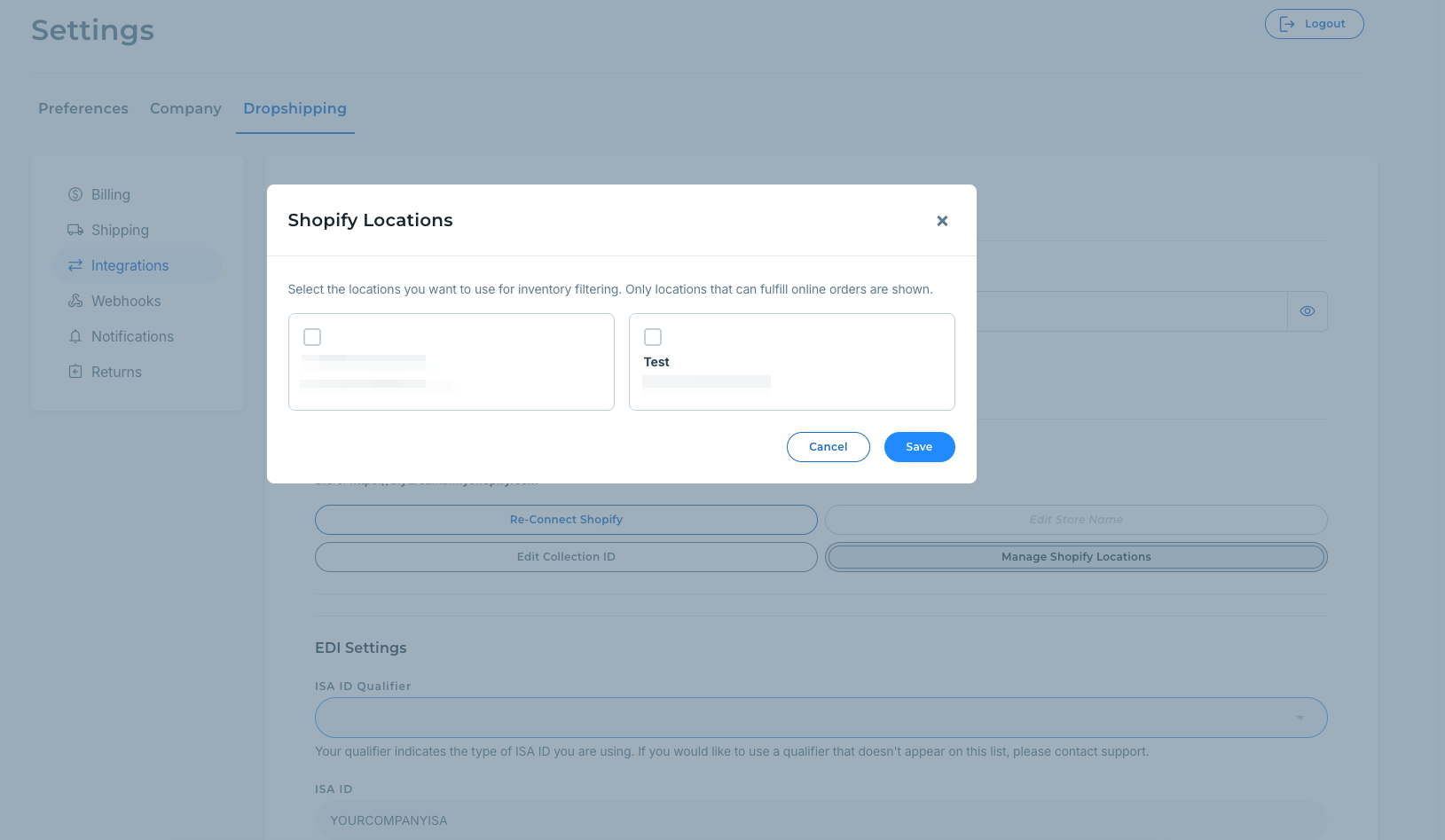
Once that is done you will see the inventory count updated within 1 hour of saving the changes. Inventory will reflect available quantity from the locations selected.